TGViewer
Channel Public Channel
MS Excel for Data Analysis

MS Excel for Data Analysis

@excel_analyst

✅ Learn Basic & Advaced Ms Excel concepts for data analysis

✅ Learn Tips & Tricks Used in Excel

✅ Become An Expert

✅ Use The Skills Learnt Here In Your Career

For promotions: @love_data
Subscribers
73.1K
Photos
451
Videos
2
Links
508
Recent Posts 20 shown
Post #2341 2.46K
📊 Excel Shortcuts — Part 3

This part focuses on Formatting Shortcuts — quickly format cells, numbers, rows, and columns without repeatedly using the ribbon.

🟢 Basic Formatting

1️⃣ Ctrl + B → Bold

2️⃣ Ctrl + I → Italic

3️⃣ Ctrl + U → Underline

4️⃣ Ctrl + 1 → Open Format Cells dialog box

5️⃣ Ctrl + 5 → Apply / remove strikethrough

🔵 Number Formatting

6️⃣ Ctrl + Shift + ~ → General format

7️⃣ Ctrl + Shift + $ → Currency format

8️⃣ Ctrl + Shift + % → Percentage format

9️⃣ Ctrl + Shift + # → Date format

🔟 Ctrl + Shift + @ → Time format

1️⃣1️⃣ Ctrl + Shift + ! → Number format with commas and two decimal places

🟣 Rows & Columns

1️⃣2️⃣ Ctrl + Shift + + → Insert cells, rows, or columns

1️⃣3️⃣ Ctrl + - → Delete selected cells, rows, or columns

1️⃣4️⃣ Alt + H + O + A → AutoFit row height

1️⃣5️⃣ Alt + H + O + I → AutoFit column width

🟠 Useful Formatting Actions

1️⃣6️⃣ Alt + H + H → Open Fill Color menu

1️⃣7️⃣ Alt + H + FC → Open Font Color menu

1️⃣8️⃣ Ctrl + Shift + & → Apply border

1️⃣9️⃣ Ctrl + Shift + _ → Remove border

2️⃣0️⃣ Ctrl + E → Center-align text

💡 Real-World Example

Suppose you receive a raw sales report.

Instead of manually formatting everything:

➡️ Select the header → Ctrl + B

➡️ Format sales as currency → Ctrl + Shift + $

➡️ Format percentages → Ctrl + Shift + %

➡️ AutoFit columns → Alt + H + O + I

➡️ Insert a new column → Ctrl + Shift + +

➡️ Open detailed formatting options → Ctrl + 1

🧠 Double Tap ❤️ For More
  • ❤ 14
Post #2340 2.15K
𝗙𝗥𝗘𝗘 𝗥𝗲𝘀𝗼𝘂𝗿𝗰𝗲𝘀 𝗧𝗼 𝗟𝗲𝗮𝗿𝗻 𝗔𝗜 𝗶𝗻 𝟮𝟬𝟮𝟲🚀
​
Explore 6 free resources covering AI fundamentals, tools, deep learning, research and real-world applications.

✅ 100% Free Learning
✅ Beginner-Friendly
✅ AI • ML • Deep Learning
✅ Real-World Applications

🔗 𝗘𝘅𝗽𝗹𝗼𝗿𝗲 𝗙𝗥𝗘𝗘 𝗖𝗼𝘂𝗿𝘀𝗲𝘀 👇

https://pdlink.in/4AFHq5R

📢 Share this valuable opportunity with your friends and classmates!
Post #2339 2.47K
📊 Excel Shortcuts — Part 2

This part focuses on Navigation & Selection shortcuts — especially useful when working with large datasets.

🟢 Navigation Shortcuts

1️⃣ Arrow Keys → Move one cell

2️⃣ Ctrl + Arrow Key → Jump to the edge of a data region

3️⃣ Home → Move to the beginning of the row

4️⃣ Ctrl + Home → Go to the beginning of the worksheet

5️⃣ Ctrl + End → Go to the last used cell

6️⃣ Page Up → Move one screen up

7️⃣ Page Down → Move one screen down

8️⃣ Alt + Page Up → Move one screen left

9️⃣ Alt + Page Down → Move one screen right

🔟 F5 → Open Go To 

🔵 Selection Shortcuts

1️⃣1️⃣ Shift + Arrow Key → Extend selection by one cell

1️⃣2️⃣ Ctrl + Shift + Arrow Key → Select data up to the edge of a data region

1️⃣3️⃣ Ctrl + Space → Select the entire column

1️⃣4️⃣ Shift + Space → Select the entire row

1️⃣5️⃣ Ctrl + A → Select the current data region / all data

1️⃣6️⃣ Ctrl + Shift + Space → Select the entire worksheet 

💡 Real-World Example

Imagine you have 50,000 rows of sales data.

Instead of scrolling manually:

Ctrl + ↓ → Jump to the bottom of the data

Ctrl + ↑ → Jump back to the top

Ctrl + Shift + ↓ → Select data down to the end

Ctrl + Space → Select the entire column

Shift + Space → Select the entire row 

🧠 Double Tap ❤️ For More
  • ❤ 16
Post #2338 1.92K
🎓 𝗛𝗔𝗥𝗩𝗔𝗥𝗗 𝗨𝗡𝗜𝗩𝗘𝗥𝗦𝗜𝗧𝗬 𝗙𝗥𝗘𝗘 𝗢𝗡𝗟𝗜𝗡𝗘 𝗖𝗢𝗨𝗥𝗦𝗘𝗦 😍

Dreaming of learning from one of the world’s most prestigious universities? Explore Harvard’s online courses and build valuable, career-ready skills from home!

💡 Beginner-friendly options
⏰ Learn at your own pace
🌍 Accessible online worldwide
🎯 Ideal for students, freshers and working professionals

🔗 𝗘𝘅𝗽𝗹𝗼𝗿𝗲 𝗙𝗥𝗘𝗘 𝗖𝗼𝘂𝗿𝘀𝗲𝘀 👇

https://pdlink.in/4xPUdzU

📢 Share this valuable opportunity with your friends and classmates!
  • 👍 1
Post #2337 2.32K
📊 Excel Shortcuts — Part 1

Master these basic shortcuts first. They will save time every day when working with Excel.

🟢 File & Workbook Shortcuts

1️⃣ Ctrl + N → Create a new workbook

2️⃣ Ctrl + O → Open a workbook

3️⃣ Ctrl + S → Save the workbook

4️⃣ Ctrl + Shift + S → Save As

5️⃣ Ctrl + P → Print

6️⃣ Ctrl + W → Close the current workbook

🔵 Editing Shortcuts

7️⃣ Ctrl + C → Copy

8️⃣ Ctrl + X → Cut

9️⃣ Ctrl + V → Paste

🔟 Ctrl + Z → Undo

1️⃣1️⃣ Ctrl + Y → Redo / Repeat

1️⃣2️⃣ F2 → Edit the active cell

1️⃣3️⃣ Delete → Clear the contents of selected cells

🟣 Find & Select

1️⃣4️⃣ Ctrl + F → Find

1️⃣5️⃣ Ctrl + H → Find & Replace

1️⃣6️⃣ Ctrl + A → Select the current data region / all data

1️⃣7️⃣ Esc → Cancel the current action or entry

💡 Double Tap ❤️ For More
  • ❤ 17
  • 👏 4
Post #2336 2.21K
𝗟𝗲𝘃𝗲𝗹 𝗨𝗽 𝗬𝗼𝘂𝗿 𝗦𝗸𝗶𝗹𝗹𝘀 𝘄𝗶𝘁𝗵 𝗧𝗵𝗲𝘀𝗲 𝗚𝗮𝗺𝗲-𝗖𝗵𝗮𝗻𝗴𝗶𝗻𝗴 𝗖𝗼𝘂𝗿𝘀𝗲𝘀!
​
Looking to learn practical, in-demand skills? These courses cover Generative AI, Cybersecurity, AI tools and Digital Marketing.

💫 Learn at your own pace
⚡Build career-relevant skills
🔥Practical learning opportunities

𝗘𝘅𝗽𝗹𝗼𝗿𝗲 𝘁𝗵𝗲 𝗖𝗼𝘂𝗿𝘀𝗲𝘀 :-

https://pdlink.in/4z3vOYU

Save this post and share with your friends
Post #2335 2.27K
📊 Excel Formulas — Part 8

This part focuses on Advanced Calculation Functions — useful for working with filtered data, multiple calculations, and large datasets.

1️⃣ SUBTOTAL

Performs calculations while respecting filtered or hidden rows depending on the function number.

=SUBTOTAL(9,B2:B100)

Here, 9 means SUM.

Common function numbers:

1 → AVERAGE

2 → COUNT

3 → COUNTA

9 → SUM

4 → MAX

5 → MIN

💡 Very useful when working with filtered tables.

2️⃣ AGGREGATE

Performs calculations while allowing you to ignore errors, hidden rows, or nested subtotals.

=AGGREGATE(9,5,B2:B100)

Here:

9 → SUM

5 → Ignore hidden rows

It supports functions such as:

• AVERAGE

• COUNT

• MAX

• MIN

• SUM

• LARGE

• SMALL

3️⃣ SUMPRODUCT

Multiplies corresponding values and then adds the results.

=SUMPRODUCT(B2:B10,C2:C10)

Example:

Product Price Quantity

Laptop 50000 2

Mouse 800 5

Keyboard 1500 3

=SUMPRODUCT(B2:B4,C2:C4)

This calculates:

50000×2 + 800×5 + 1500×3

Result → 107,500

💡 Extremely useful for weighted calculations and business analysis.

4️⃣ LARGE

Returns the nth largest value.

=LARGE(B2:B10,1)

→ Largest value

=LARGE(B2:B10,2)

→ 2nd largest value

5️⃣ SMALL

Returns the nth smallest value.

=SMALL(B2:B10,1)

→ Smallest value

=SMALL(B2:B10,2)

→ 2nd smallest value

6️⃣ RANK.EQ

Returns the rank of a number within a dataset.

=RANK.EQ(B2,$B$2:$B$10,0)

0 → Highest value gets rank 1

1 → Lowest value gets rank 1

Example:

Sales = 95000

Rank → 2

7️⃣ SUMPRODUCT + Conditions

SUMPRODUCT can also perform conditional calculations.

=SUMPRODUCT((A2:A10="East")*(B2:B10))

This calculates the total of values in column B where the region is East.

💡 Useful when you need flexible calculations without creating helper columns.

🧠 Quick Reference

SUBTOTAL → Calculations that work well with filtered data

AGGREGATE → Advanced calculations with options to ignore certain values

SUMPRODUCT → Multiply and sum corresponding values

LARGE → nth largest value

SMALL → nth smallest value

RANK.EQ → Rank values

SUMPRODUCT + Conditions → Flexible conditional calculations

💡 Practice

Using a sales dataset, try to calculate:

1.

Total visible sales → SUBTOTAL

2.

Average visible sales → SUBTOTAL

3.

Sum while ignoring hidden rows → AGGREGATE

4.

Total revenue from Price × Quantity → SUMPRODUCT

5.

3rd highest sale → LARGE

6.

2nd lowest sale → SMALL

7.

Rank each salesperson → RANK.EQ

8.

Total East-region sales → SUMPRODUCT

🔥 Double Tap ❤️ For More
  • ❤ 11
Post #2334 2.12K
🚀 𝗚𝗼𝗼𝗴𝗹𝗲 𝗣𝗿𝗼𝗳𝗲𝘀𝘀𝗶𝗼𝗻𝗮𝗹 𝗖𝗲𝗿𝘁𝗶𝗳𝗶𝗰𝗮𝘁𝗲𝘀 𝗶𝗻 𝗗𝗮𝘁𝗮 𝗔𝗻𝗮𝗹𝘆𝘁𝗶𝗰𝘀 & 𝗔𝗜! 📊

Explore these 4 Google learning programs and develop practical, career-relevant skills.

🎓 Explore the programs:
1️⃣ Google Data Analytics Professional Certificate
2️⃣ Google Business Intelligence Professional Certificate
3️⃣ Google AI Essentials
4️⃣ Google Advanced Data Analytics Professional Certificate

🔗 𝗘𝗻𝗿𝗼𝗹𝗹 𝗳𝗼𝗿 𝗙𝗥𝗘𝗘 👇:-

https://pdlink.in/4htgIEW

📌 Save this post and share it with someone interested in Data Analytics or AI!
  • ❤ 3
Post #2333 2.33K
Excel Shortcuts
  • ❤ 11
Post #2332 2.77K
📊 Excel Formulas — Part 6

This part focuses on Date & Time formulas — essential for reporting, deadlines, ageing analysis, trends, and time-based calculations.

1️⃣ TODAY

Returns the current date.

=TODAY()

• Example: Automatically display today's date.

2️⃣ NOW

Returns the current date and time.

=NOW()

• Example: Track when a workbook was last recalculated.

3️⃣ DATE

Creates a date from year, month, and day.

=DATE(2026,9,24)

• Result: 24-Sep-2026

4️⃣ YEAR

Extracts the year from a date.

=YEAR(A2)

• Example: 24-Sep-2026 → 2026

5️⃣ MONTH

Extracts the month number.

=MONTH(A2)

• Example: 24-Sep-2026 → 9

6️⃣ DAY

Extracts the day of the month.

=DAY(A2)

• Example: 24-Sep-2026 → 24

7️⃣ EOMONTH

Returns the last day of a month.

=EOMONTH(A2,0)

• If A2 is 24-Sep-2026 → Result: 30-Sep-2026

• You can also move between months:

• =EOMONTH(A2,1) → Last day of next month

8️⃣ DATEDIF

Calculates the difference between two dates.

=DATEDIF(A2,B2,"Y")

• Returns the number of complete years.

Other units:

• "Y" → Years

• "M" → Months

• "D" → Days

Example:

• =DATEDIF(A2,B2,"D") → Number of days between the dates.

9️⃣ DAYS

Returns the number of days between two dates.

=DAYS(B2,A2)

• Example:

• Start Date → 01-Sep-2026

• End Date → 24-Sep-2026

• Result → 23

🔟 NETWORKDAYS

Calculates the number of working days between two dates, excluding weekends.

=NETWORKDAYS(A2,B2)

• You can also exclude holidays:

• =NETWORKDAYS(A2,B2,E2:E10)

🧠 Quick Reference

• TODAY() → Current date

• NOW() → Current date + time

• DATE() → Create a date

• YEAR() → Extract year

• MONTH() → Extract month

• DAY() → Extract day

• EOMONTH() → Last day of month

• DATEDIF() → Difference between dates

• DAYS() → Number of days between dates

• NETWORKDAYS() → Working days between dates

💡 Practice

• Employee → Joining Date → End Date

• Rahul → 10-Jan-2022 → 24-Sep-2026

• Priya → 15-Mar-2023 → 24-Sep-2026

• Amit → 20-Jul-2024 → 24-Sep-2026

• Neha → 05-Feb-2025 → 24-Sep-2026

❤️ Double Tap & React For Part 7!
  • ❤ 19
Post #2331 2.26K
🚀 𝐁𝐞𝐜𝐨𝐦𝐞 𝐚𝐧 𝐀𝐈 𝐄𝐧𝐠𝐢𝐧𝐞𝐞𝐫 𝐢𝐧 𝟐𝟎𝟐𝟔

🎯 Choose Your Learning Track:

💻 Java Full Stack + AI Engineering
🌐 MERN Full Stack + AI Engineering

Placement Highlights: ₹41 LPA highest package | ₹7.4 LPA average package | 2,000+ students placed | 500+ hiring partners

🔗 𝗕𝗼𝗼𝗸 𝗙𝗥𝗘𝗘 𝗗𝗲𝗺𝗼 𝗖𝗹𝗮𝘀𝘀 :- https://pdlink.in/4fWJVID

⚡ AI is creating new career opportunities—start building the skills companies need in 2026!
  • ❤ 4
Post #2330 2.76K
🎯 GigaChat 3.5 Reasoning: 5 Key Features

1️⃣ Advanced Reasoning: Explores multiple step-by-step paths, using automated verification to reinforce correct answers and self-correct

2️⃣ Autonomous Tool Usage: Independently decides when to call external APIs or revise earlier steps

3️⃣ Linear Attention: Proprietary architecture retains key context points without re-matching from scratch

4️⃣ Token Economy: Uses 37% fewer tokens than DeepSeek V4 Flash Preview on math problems

5️⃣ Proven Performance: Open-source LLM (built on GigaChat 3.5 Ultra) with massive benchmark gains:
• IFBench: 44 → 77
• Natural Plan: 64 → 80
• LiveCodeBench v6: 56 → 85

🔗 MIT License. Weights on Hugging Face:  fp8 | bf16
  • ❤ 2
Post #2329 2.49K
📊 Excel Formulas — Part 5

This part focuses on Text Functions — essential for cleaning, extracting, and combining text in Excel.

1️⃣ LEFT

Extracts characters from the beginning of a text.

=LEFT(A2,5)

Example:

INDIA123 → INDIA

2️⃣ RIGHT

Extracts characters from the end of a text.

=RIGHT(A2,3)

Example:

INV123 → 123

3️⃣ MID

Extracts characters from the middle of a text.

=MID(A2,4,5)

Example:

EMP-12345 → 12345

4️⃣ LEN

Counts the number of characters in a text.

=LEN(A2)

Example:

Excel → 5

Spaces are also counted.

5️⃣ TRIM

Removes unnecessary spaces from text.

=TRIM(A2)

Example:

"  John   Smith  " → "John Smith"

Very useful when cleaning imported data.

6️⃣ UPPER

Converts text to uppercase.

=UPPER(A2)

excel → EXCEL

7️⃣ LOWER

Converts text to lowercase.

=LOWER(A2)

EXCEL → excel

8️⃣ PROPER

Capitalizes the first letter of each word.

=PROPER(A2)

john smith → John Smith

9️⃣ CONCAT

Combines text from multiple cells.

=CONCAT(A2," ",B2)

Example:

A2 = John

B2 = Smith

Result → John Smith

🔟 TEXTJOIN

Combines multiple values using a delimiter.

=TEXTJOIN(", ",TRUE,A2:A5)

Example:

SQL, Excel, Power BI, Tableau

The TRUE tells Excel to ignore empty cells.

🧠 Quick Reference

LEFT → Extract from beginning

RIGHT → Extract from end

MID → Extract from middle

LEN → Count characters

TRIM → Remove extra spaces

UPPER → Convert to uppercase

LOWER → Convert to lowercase

PROPER → Capitalize words

CONCAT → Combine text

TEXTJOIN → Combine text with a separator

💡 Practice

Suppose:

A2 = "  john smith  "

Try creating formulas to:

1. Remove extra spaces → TRIM

2. Convert to uppercase → UPPER

3. Convert to lowercase → LOWER

4. Capitalize properly → PROPER

5. Count characters → LEN

❤️ Double Tap & React For Part 6!
  • ❤ 20
  • 👍 1
Post #2328 2.45K
🚀 𝗧𝗼𝗽 𝟳 𝗙𝗥𝗘𝗘 𝗠𝗶𝗰𝗿𝗼𝘀𝗼𝗳𝘁 𝗖𝗼𝘂𝗿𝘀𝗲𝘀 𝘁𝗼 𝗟𝗲𝗮𝗿𝗻 𝗗𝗮𝘁𝗮 𝗔𝗻𝗮𝗹𝘆𝘁𝗶𝗰𝘀! 📊

Want to start a career in Data Analytics?

Explore these 7 free Microsoft-backed learning resources covering Power BI, Excel, SQL and data fundamentals

🔗 𝗔𝗰𝗰𝗲𝘀𝘀 𝘁𝗵𝗲 𝗙𝗥𝗘𝗘 𝗖𝗼𝘂𝗿𝘀𝗲𝘀 👇

https://pdlink.in/3Tm2D3Z

💡 Ideal for students, freshers and professionals who want to build practical data skills.
  • ❤ 1
Post #2327 2.77K
🎓 𝗦𝘁𝗮𝗻𝗳𝗼𝗿𝗱 𝗨𝗻𝗶𝘃𝗲𝗿𝘀𝗶𝘁𝘆 𝗙𝗥𝗘𝗘 𝗢𝗻𝗹𝗶𝗻𝗲 𝗖𝗼𝘂𝗿𝘀𝗲𝘀! 🚀

Explore free online learning opportunities from Stanford University across technology, business and more!

💻 Tech & Programming
🤖 Artificial Intelligence & Data Science
💼 Business & Entrepreneurship
💡 Leadership & Innovation

🔗 𝗘𝘅𝗽𝗹𝗼𝗿𝗲 𝘁𝗵𝗲 𝗙𝗥𝗘𝗘 𝗖𝗼𝘂𝗿𝘀𝗲𝘀 👇

https://pdlink.in/4hlnZGw

🎯 Great for students, freshers and working professionals looking to expand their knowledge.
  • ❤ 2
Post #2326 2.99K
📊 Excel Formulas — Part 4

This part focuses on Lookup formulas — essential when you need to find information from another table.

1️⃣ XLOOKUP

Searches for a value and returns the corresponding result.

=XLOOKUP(A2,E2:E10,F2:F10,"Not Found")

Example: Find an employee's department using their Employee ID.

Why it's useful:

• Can look left or right

• Exact match by default

• Can return a custom result when nothing is found

2️⃣ VLOOKUP

Searches vertically in the first column of a table.

=VLOOKUP(A2,E2:G10,3,FALSE)

Example: Find a product's price using its Product ID.

Remember: FALSE → Exact match

TRUE → Approximate match

3️⃣ HLOOKUP

Searches horizontally across the first row of a table.

=HLOOKUP(B1,B2:F5,4,FALSE)

Useful when your lookup values are arranged horizontally.

4️⃣ INDEX

Returns a value from a specific position in a range.

=INDEX(B2:B10,4)

Example: Return the 4th value from the range B2:B10.

5️⃣ MATCH

Finds the position of a value within a range.

=MATCH("Laptop",A2:A10,0)

0 means you want an exact match.

6️⃣ INDEX + MATCH

A powerful combination for lookups.

=INDEX(C2:C10,MATCH(A2,A2:A10,0))

Here:

MATCH → Finds the position

INDEX → Returns the value from that position

💡 Sample Data

Product ID Product Price

P101 Laptop 50000

P102 Mouse 800

P103 Keyboard 1500

P104 Monitor 12000

P105 Headphones 2500

Try finding the Price for Product ID P103 using:

1. XLOOKUP

2. VLOOKUP

3. INDEX + MATCH

🧠 Double Tap ❤️ For More
  • ❤ 13
Post #2325 2.54K
𝗙𝗥𝗘𝗘 𝗔𝗜 𝗖𝗮𝗿𝗲𝗲𝗿 𝗠𝗮𝘀𝘁𝗲𝗿𝗰𝗹𝗮𝘀𝘀 🚀

Join this expert-led masterclass and discover how to become industry-ready for high-growth AI roles.

📅 Date: 24 September 2026
⏰ Time: 7:00 PM–9:00 PM IST
🌐 Mode: Online
🎓 Certificate: Available to all attendees

Eligibility :- Graduates Passing In 2025 or earlier

🔗 𝗥𝗲𝗴𝗶𝘀𝘁𝗲𝗿 𝗳𝗼𝗿 𝗙𝗥𝗘𝗘 👇

https://pdlink.in/4xAMeGW

⚡ Register now and take your first step towards a successful career in AI!
  • ❤ 1
Post #2324 2.63K
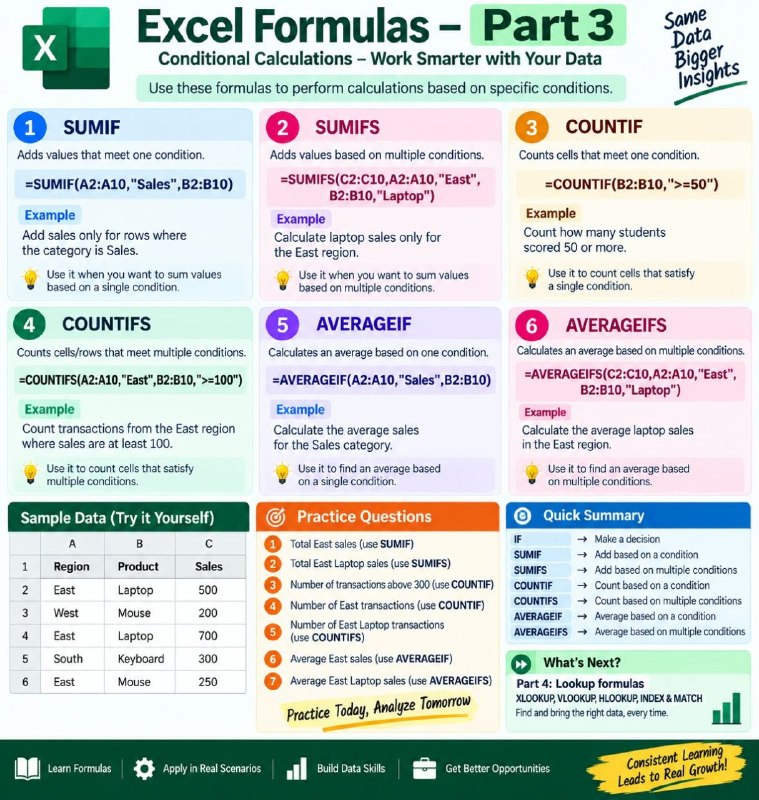
📊 Excel Formulas — Part 3

Conditional Calculations

This part focuses on conditional calculations — extremely useful when working with real-world datasets.

1️⃣ SUMIF

Adds values that meet one condition. 
=SUMIF(A2:A10,"Sales",B2:B10)

Example: Add sales only for rows where the category is Sales.

2️⃣ SUMIFS

Adds values based on multiple conditions. 
=SUMIFS(C2:C10,A2:A10,"East",B2:B10,"Laptop")

Example: Calculate laptop sales only for the East region.

Syntax: 
=SUMIFS(sum_range, criteriaᵣange1, criteria1, criteriaᵣange2, criteria2)

3️⃣ COUNTIF

Counts cells that meet one condition. 
=COUNTIF(B2:B10,">=50")

Example: Count how many students scored 50 or more.

4️⃣ COUNTIFS

Counts cells/rows that meet multiple conditions. 
=COUNTIFS(A2:A10,"East",B2:B10,">=100")

Example: Count transactions from the East region where sales are at least 100.

5️⃣ AVERAGEIF

Calculates an average based on one condition. 
=AVERAGEIF(A2:A10,"Sales",B2:B10)

Example: Calculate the average sales for the Sales category.

6️⃣ AVERAGEIFS

Calculates an average based on multiple conditions. 
=AVERAGEIFS(C2:C10,A2:A10,"East",B2:B10,"Laptop")

Example: Calculate the average laptop sales in the East region.

💡 Sample Data

Region | Product | Sales 
East | Laptop | 500 
West | Mouse | 200 
East | Laptop | 700 
South | Keyboard | 300 
East | Mouse | 250 

Try calculating:

1. Total East sales → SUMIF
2. Total East Laptop sales → SUMIFS
3. Number of transactions above 300 → COUNTIF
4. Number of East transactions → COUNTIF
5. Number of East Laptop transactions → COUNTIFS
6. Average East sales → AVERAGEIF
7. Average East Laptop sales → AVERAGEIFS

🧠 Remember

• IF → Make a decision
• SUMIF → Add based on a condition
• SUMIFS → Add based on multiple conditions
• COUNTIF → Count based on a condition
• COUNTIFS → Count based on multiple conditions
• AVERAGEIF → Average based on a condition
• AVERAGEIFS → Average based on multiple conditions

Double Tap ❤️ For Part-4
  • ❤ 17
  • 👍 1
Post #2323 2.34K
🚀 𝗧𝗼𝗽 𝗜𝗻-𝗗𝗲𝗺𝗮𝗻𝗱 𝗖𝗲𝗿𝘁𝗶𝗳𝗶𝗰𝗮𝘁𝗶𝗼𝗻𝘀 𝘁𝗼 𝗠𝗮𝘀𝘁𝗲𝗿 𝗶𝗻 𝟮𝟬𝟮𝟲

Explore these certification courses in today’s most in-demand technology fields:

💻 Full Stack :- https://pdlink.in/3SuUeuD

📊 Data Analytics :- https://pdlink.in/45vk5ph

💫AI Engineering :- https://pdlink.in/4fWJVID

🔥 Take the first step towards your high-paying tech career in 2026!
  • ❤ 1
Post #2322 2.83K
✅ Learn New Skills FREE 🔰

1. Web Development ➝
◀️ https://t.me/webdevcoursefree

2. CSS ➝
◀️ http://css-tricks.com

3. JavaScript ➝
◀️ http://t.me/javascript_courses

4. React ➝
◀️ http://react-tutorial.app

5. Data Engineering ➝
◀️ https://t.me/sql_engineer

6. Data Science  ➝
◀️ https://t.me/datasciencefun

7. Python ➝
◀️ http://pythontutorial.net

8. SQL ➝
◀️  https://t.me/sqlanalyst

9. Git and GitHub ➝
◀️ http://GitFluence.com

10. Blockchain ➝
◀️ https://t.me/Bitcoin_Crypto_Web

11. Mongo DB ➝
◀️ http://mongodb.com

12. Node JS ➝
◀️ http://nodejsera.com

13. English Speaking ➝
◀️ https://t.me/englishlearnerspro

14. C#➝
◀️ https://learn.microsoft.com/en-us/training/paths/get-started-c-sharp-part-1/

15. Excel➝
◀️ https://t.me/excel_analyst

16. Generative AI➝
◀️ https://t.me/generativeai_gpt

17. Java
◀️ https://t.me/Java_Programming_Notes

18. Artificial Intelligence
◀️ https://t.me/machinelearning_deeplearning

19. Data Structure & Algorithms
◀️ https://t.me/dsabooks

20. Python for AI
◀️ https://deeplearning.ai/short-courses/ai-python-for-beginners/

Join @free4unow_backup for more free courses

Like for more ❤️

ENJOY LEARNING👍👍
  • ❤ 6
Older posts →

About this channel

How can I read @excel_analyst without a Telegram account?
TGViewer shows the public web preview Telegram publishes for MS Excel for Data Analysis: recent posts, photos, videos and the subscriber count, with no app, login or account.
How many subscribers does MS Excel for Data Analysis have?
MS Excel for Data Analysis (@excel_analyst) has 73.1K subscribers on Telegram, refreshed roughly every 30 minutes.
Does MS Excel for Data Analysis know I viewed it here?
No. Public channel previews carry no viewer identity, and TGViewer has no accounts or tracking of what you look up.
Threads Profile ViewerView any public Threads profile without an account.Open ThreadLook →Writing with AI? Make it sound human.Metric37 rewrites AI drafts so they read naturally. Free AI detector, 1,500 words free.Try Metric37 →