ℹ️
How to add a secondary account from the Test DC (Data Center)
•
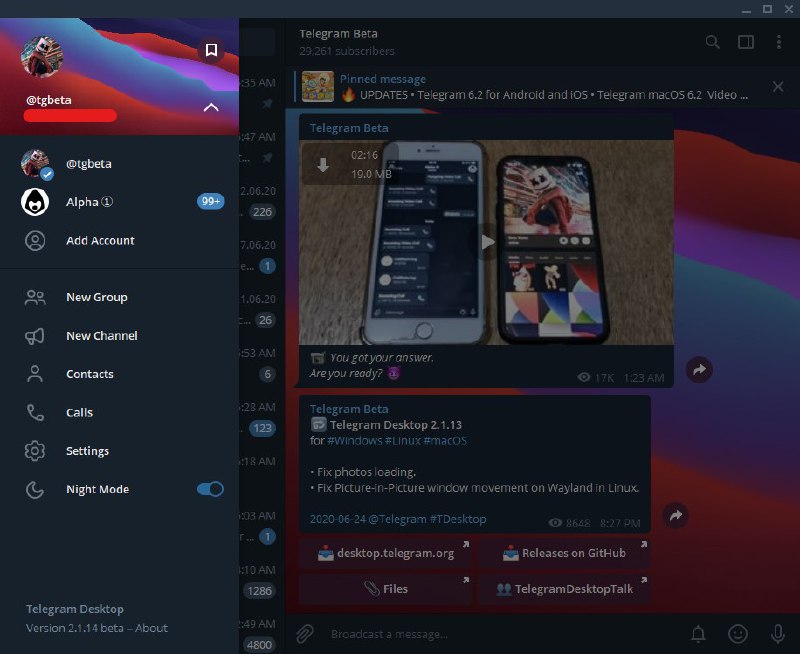
TDesktop 2.1.14+ and
Unigram Hold [Alt+Shift] key and right click on “Add Account” button, there will be a context menu > Test Server
•
Telegram Mac
Open
Developer menu (5 clicks on the Settings icon) > hold Command key and click “Add Account” > Login
•
Telegram iOS
Open
Debug settings (10 taps on the Settings icon) > Accounts > Login to another account > Test
•
Telegram Android Beta
Go to Settings > scroll to the bottom > Switch Backend > Login.
WARNING: You will need to relogin when back to the Production Server by click again on Switch Backend.
(Update: It was removed since v6.3,
but Switch Backend once appeared on Beta v7.2.0.2125)
• Telegram WebKhttps://web.telegram.org/k/?test=1Notes:
Test DC is a Test/Beta Server for
Developers to test something.
Sometimes new features are deployed there first, so new updates can be tested without affecting the Production Server.
 TE
TE